Hello and welcome,
The Browse page has a new look, an improved way to rent more than one card at a time, and a much needed overhaul for how you express interest in renting cards not on the platform.
Grouped tiles
Instead of a separate tile for every listing, Browse now shows one listing tile per card and quality combination. Each tile shows the cheapest available price and a quick "N listed · M available" so you can see supply at a glance without digging through duplicates.
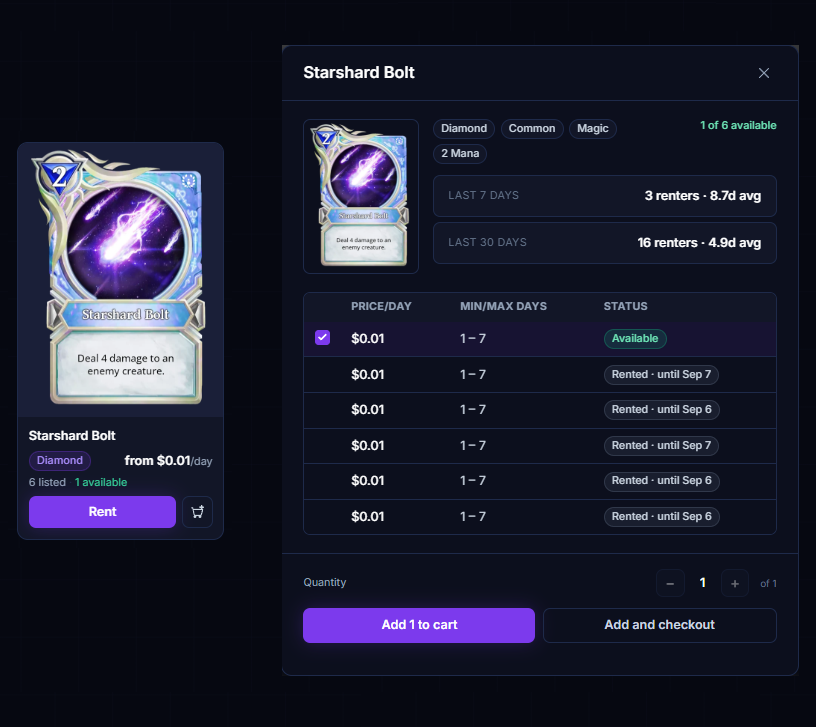
Click a tile to open the detail view, which lists details of every copy of that card and quality: price, min/max rental days, and whether it's currently rented or available. A quantity stepper lets you pick how many copies you want and which listings to pull them from.
The cart
Want a card fast? You're still able to individually rent cards in just 2 clicks with the same flow and level of customization as before by clicking the "Rent" button on the new grouped tiles, the cheapest available listing will be chosen automatically.
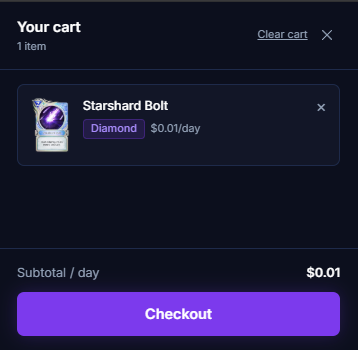
If you're looking to buld your cart, you can do that in a few ways. Hit the + on any tile and the cheapest available copy is added straight to your cart. Keep browsing and add as many cards, or copies of the same card, as you like.
The cart icon in the nav now carries a badge showing how many copies are waiting to be rented. When you're ready, one checkout rents everything in the cart together, you choose the rental length once and it applies across the whole cart as a batch rental.
Make an offer
Until now, if every copy of a card was rented out, or nobody had deposited any copies, there wasn't much you could do. Now you have the option to make an offer.
An offer is you saying "I'll pay this much per day for this card, for this long." You set:
- Price per day, at or above the quality's floor price.
- Copies, one or two, since that's all a deck can hold.
- Rental length, 1 to 14 days per copy.
- How long the offer stays open, 7, 14, 21 or 28 days.
- When it starts, right away when a lender accepts, or at the next 00:00 UTC reset if you'd rather line it up with the daily schedule.
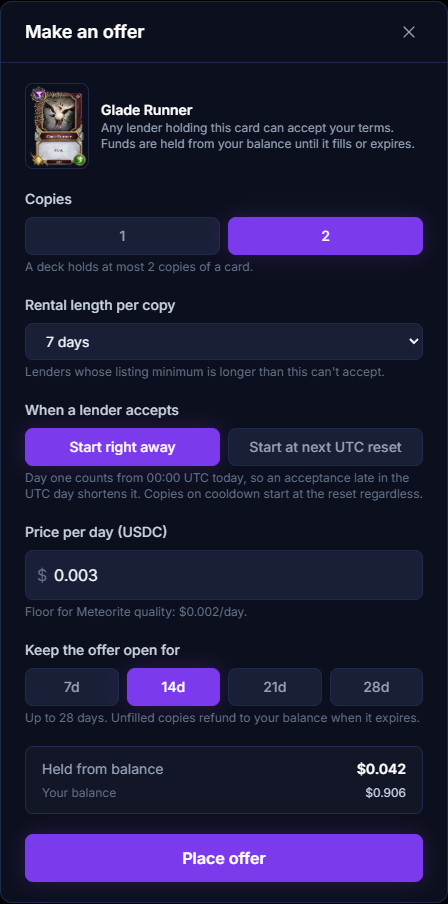
The total is held from your balance the moment you place the offer, so a lender who accepts knows the money is there. If the offer expires or you cancel it, the hold is released back to your balance in full. When a lender accepts, the hold turns into a normal rental at your offered price, not their listing price.
You'll find the Make offer button on any tile or detail view where every copy is rented, on the footer of the detail view for listed cards when the cheapest copy is above the floor ("or make an offer below $X/day"), and on the new "not on the platform" tiles described below.
Every open offer on the platform is also visible to everyone on the new Open Offers tab in Browse, next to Most Wanted. It shows each card and quality with how many offers are waiting, how many copies, the top price per day, and whether the card is at its system supply cap. If you're a lender wondering what's worth depositing, or a renter wondering what others are paying, that's the place to look.
Your open offers live under My Rentals → My Offers. From there you can raise an offer at any time: bump the price, add a second copy, lengthen the rental, extend the expiry, or switch the start mode. Offers can only go up, never down. If you want to pay less, cancel and place a new one. You'll get a notification when an offer is accepted, and another if it expires unfilled.
Lenders: the Offers tab
If you lend cards, there's a new Offers tab on your Lending page. It lists every open offer on cards you have listed, highest price first, with a badge on the tab for how many are waiting.
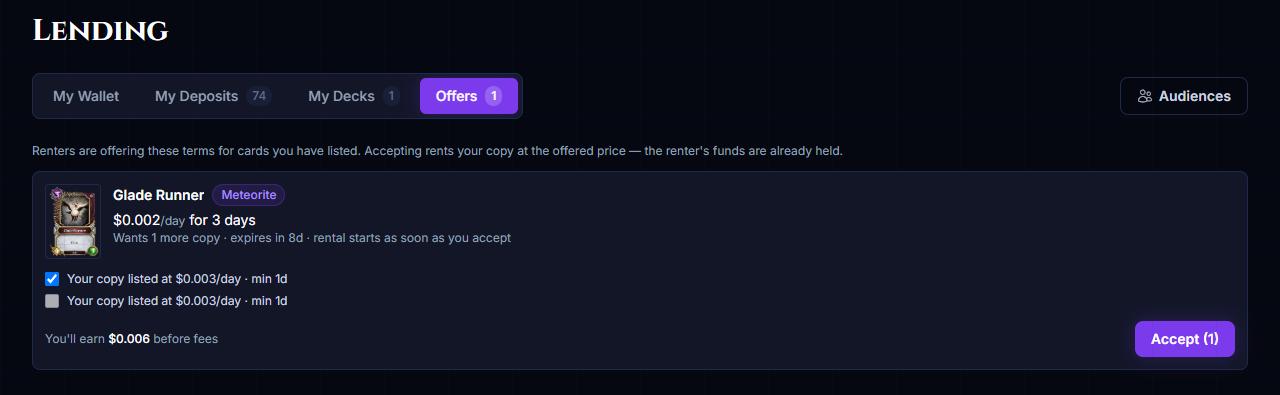
Accepting is one click. Pick which of your copies to fill it with and the rental starts immediately, or at the next UTC reset if the copy is still on its return cooldown. An offer for two copies can be filled by two different lenders, so you can accept just one if that's all you have free.
You get a notification the moment someone places an offer on a card you've listed. If the card is currently rented out, you'll hear about it when the copy comes back to you instead. If an offer asks for a shorter rental than your listing's minimum days, we'll still tell you, so you can lower the minimum if you want the deal.
Cards that aren't here yet
Search in Browse now shows cards that aren't on the platform, or are missing at some qualities. Search for a card and, after the listed tiles, you'll see dashed "Not on the platform" tiles for any matching card nobody has deposited, and "Not listed at these qualities" tiles for cards that are only listed at, say, Meteorite and Gold. Those tiles cycle through the missing qualities so it's clear what's being represented.
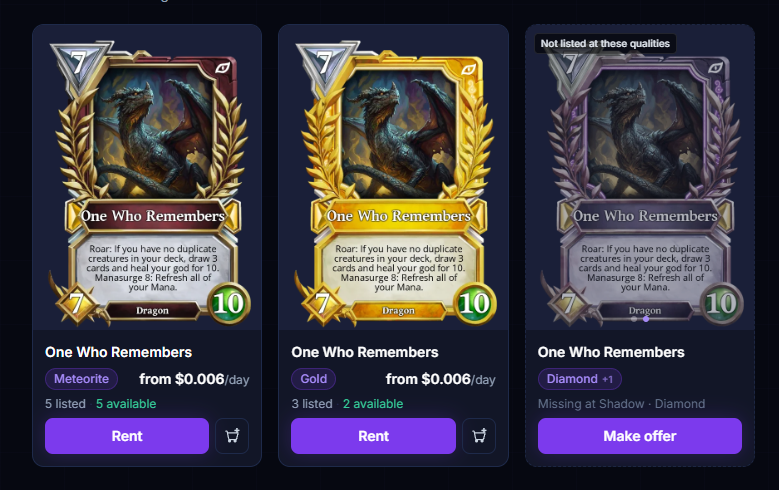
Each one has a Make offer button so you can put a price on it. If you'd rather just be told when a card shows up, the wishlist still does that. Untick "Include cards not yet on the platform" above the results if you only want what's rentable right now.
Wishlist improvements
The wishlist now does one job: it holds the cards nobody has listed.
- If you try to wishlist a card that's already available, you'll be directed to the listing.
- If every copy is rented, the wishlist will suggest to make an offer instead, which actually gets lenders' attention rather than waiting quietly.
- When a card on your wishlist gets listed, you're notified right away instead of in a daily summary, and the Wishlist entry is removed automatically so the list stays current with what's available to rent.
- Existing wishlists were cleaned up the same way. If you saw a notification that cards on your wishlist were already available, that's what happened, and those cards were rentable at the time.
Show me around
First time on the new Browse? A short guided tour walks you through grouped tiles, the detail view, and the cart automatically. You can replay it any time from "Show me around" at the top of Browse.
Check out the new Browse →Need help?
If you have questions or run into any issues, join our official Discord, that's the only place I provide support.
Join the Discord →Happy renting!
- Apocalypse