Hello and welcome,
Pythia's Deckbox has just released User Profiles and Private Listings/Rentals! These two features are related to a degree so we'll cover what you need to know to make the best of both. Profiles will allow you to customize how other users find and see you on Pythia's Deckbox with a new handle that links to a sharable public page containing your publicly available listings, decks, and more in the future. It also lets logged-in users you've granted access view any private listings you've shared with them. You can create multiple groups and customize how and who you share with. Let's take a look in more detail below!
Profiles
Handles and Display Name
The Handle and Display Name fields are now available on your Profile page. Handles will be how other users can reliably find you on Pythia's Deckbox. They're used for your public profile link, displayed on your public profile, and are also how other users can add you to their Audience to share private listings with you, which we'll have more on later.
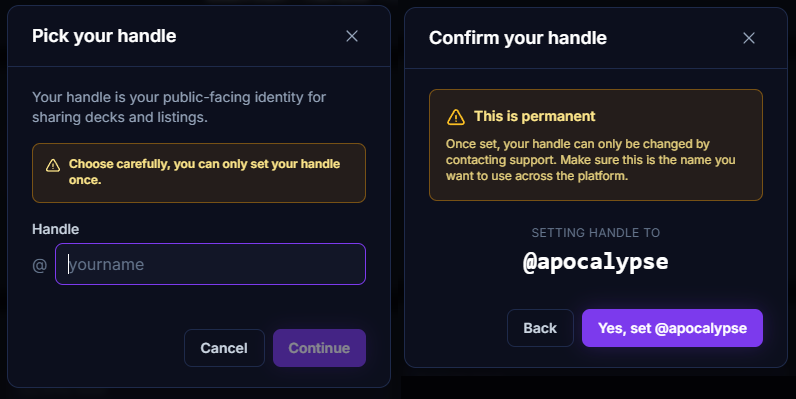
There are plans for further extensions to the public profile feature in the future as well, so it's in your best interest to use your handle to put your best foot forward. Display Names are currently used to showcase ownership of listed decks, and on your public profile. They will likely be used elsewhere in the future.
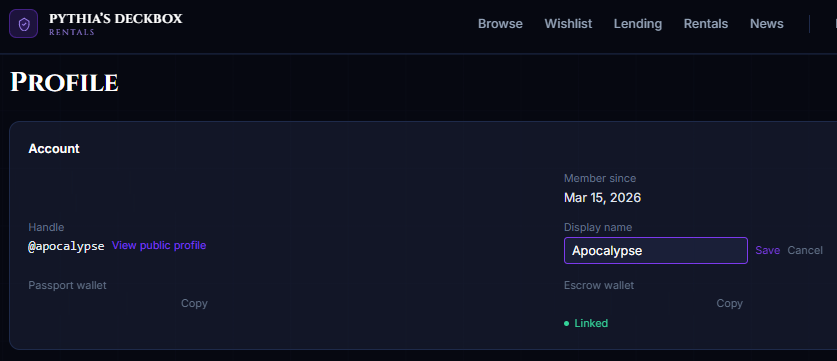
The Public Profile
Every user that sets their handle will automatically have an associated public profile page. This can be viewed by anyone regardless of whether they are logged in or not. It allows others to view your active rentable listings and decks that you have configured.
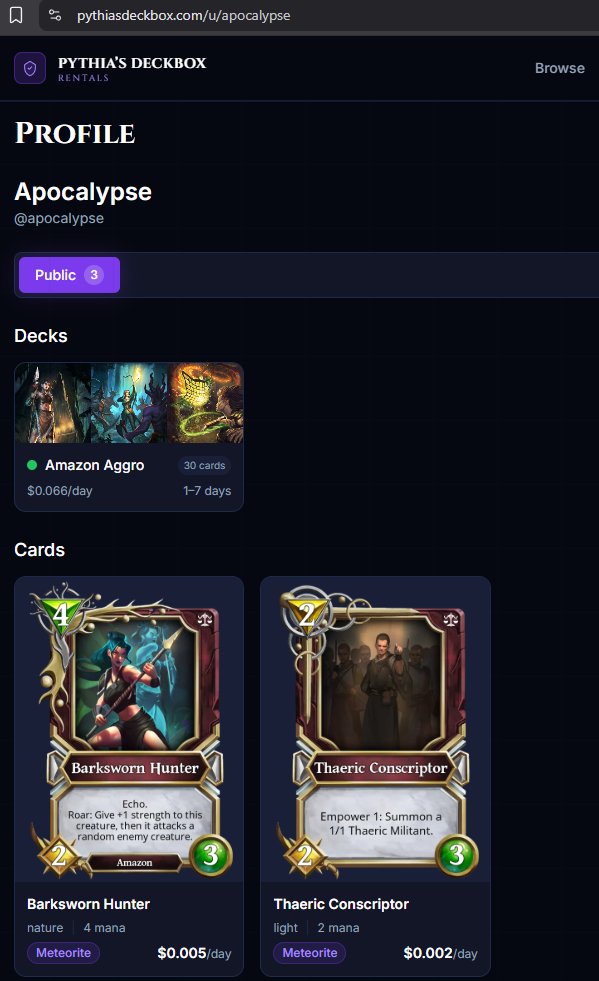
Listings that you have marked as private will only be visible to users who you have added to the corresponding Audience available on the Lending page. More on Audiences in the corresponding section below!
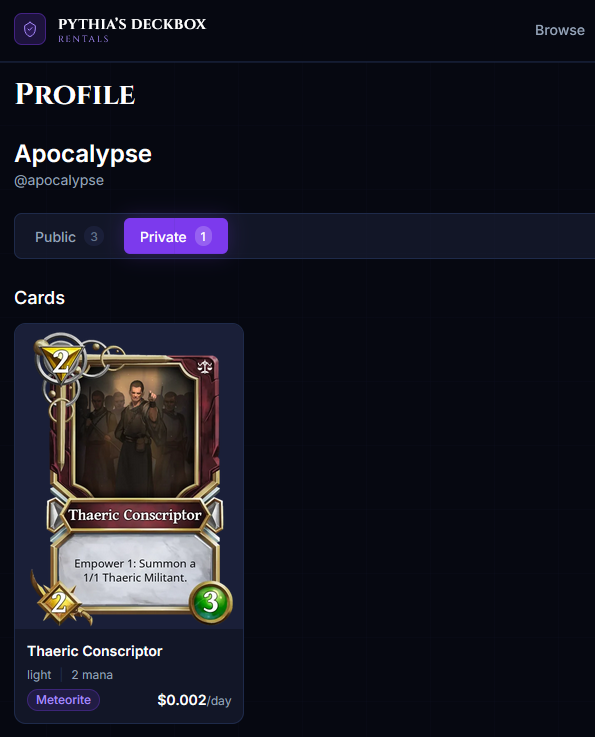
Listings, or decks, that you have marked as inactive don't show up in either the Public or Private views, and are visible only to you via the Lending → My Deposits section.
Private Listings
Setting a Listing to Private
With this release you now have the ability to set a listing to only be available privately to a specific user, or groups of users, that you choose. Doing so means that your listing will no longer show up for everyone on the Browse page. Users that you have given access to will be able to view the listing on both the Browse page, and via the Private tab on your public profile page.
Audiences
Audiences are how you control who can view your private listings. Audience configuration and management is available on the Lending page. From here you can create and edit your various Audiences that can contain up to 20 users. Creating a new Audience is easy, just choose a name to start! After that you can edit your new Audience and add or remove members by their handle. You will not be able to add a user who doesn't have a handle, so ensure anyone you'd like to add has configured theirs.
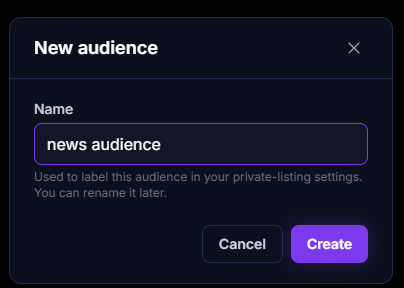
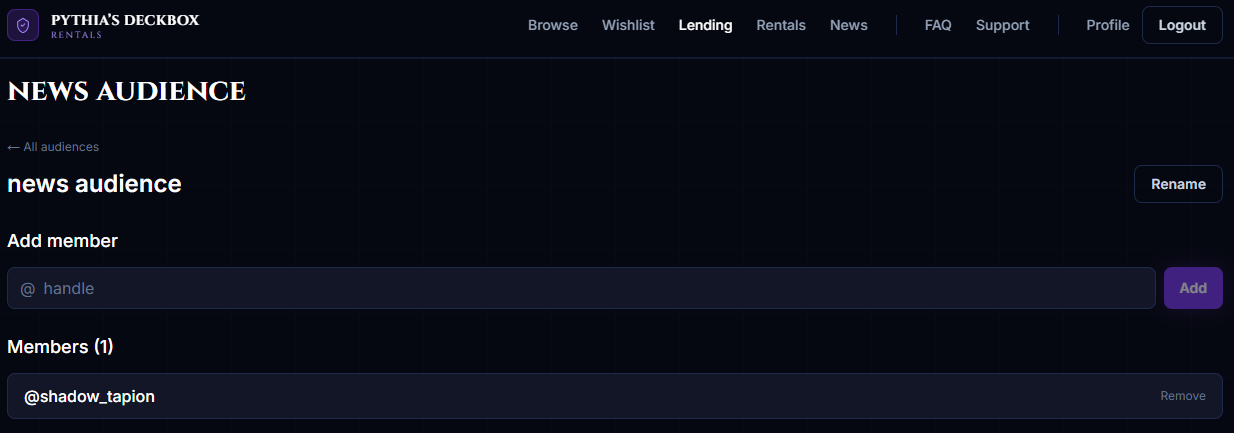
Once configured you'll be able to select this Audience when editing listings to make them private and accessible only to those users you want. If you'd like to revoke access simply remove the Audience from the listing, remove the user from the Audience, or de-activate the listing.
You can filter your deposits to listings that are Private, and those that need additional configuration as they are Private and visible only to you.
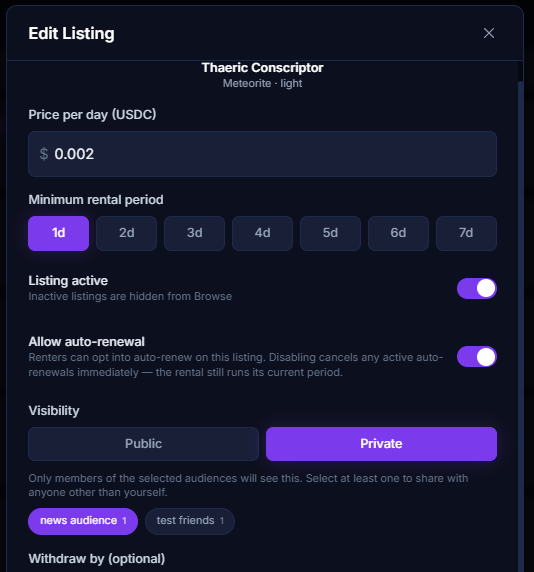
Renting a Private Listing
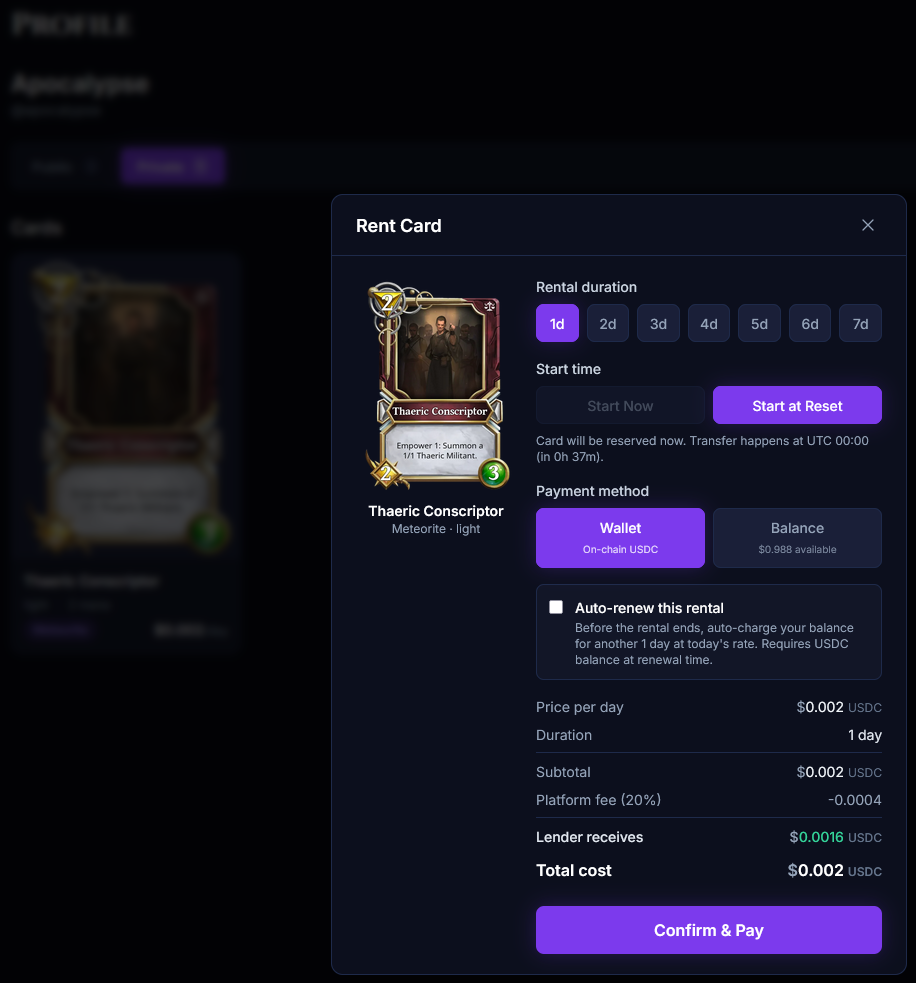
If you've been invited to a Lender's Audience for private listings there are two ways you can view what they have available. Either search for the specific card on the Browse page, or potentially more simply navigate to the Lender's public profile, and clicking on the Private tab. Once you've found the card(s) you're interested in, renting works exactly the same as it does for the classic public listing.
Wrapping Up
That covers everything you need to know about Profiles and Private Listings for now!
A few links to get you started:
Set your handle and Display Name → Manage your Audiences → Mark a listing or deck Private →Need help?
If you still have questions or run into any issues please join our official Discord to report the issue and receive assistance as we do not provide Support elsewhere.
Join the Discord →Happy renting!
- Apocalypse